Permission Guard
- 4.7
- Rating
- 1.00M
- Installs
- Free
- Price

 Analysis by App-foxy
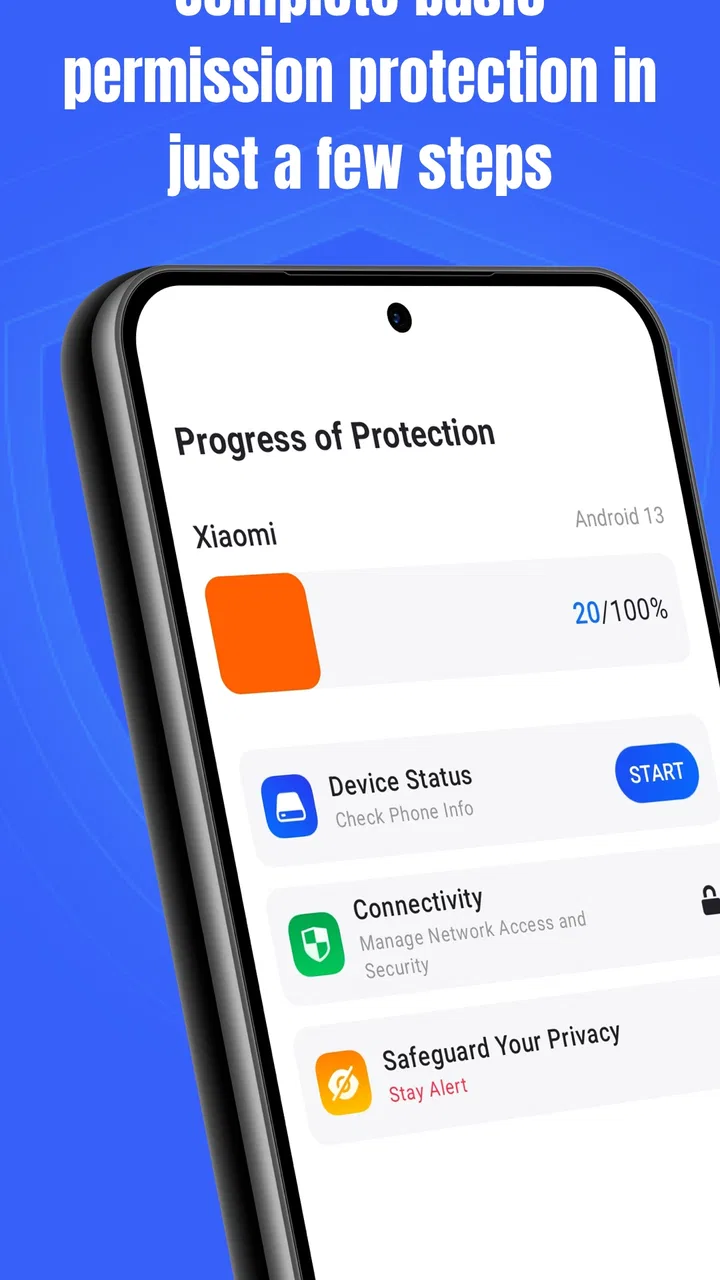
Managing app permissions is one of those tasks I usually remember only after something feels wrong: an app asks for access it does not seem to need, a privacy setting changes after an update, or I install a tool for one small job and forget what it can still reach later. Permission Guard is built for that specific problem. It is a free business app from VY Technology Services that helps me review and manage permissions on an Android device, rather than leaving every decision buried inside individual system menus.
My first impression is that it works best as a control panel for people who want a clearer view of their installed apps. It is not trying to replace the operating system, and I would not treat it as a complete security suite. Its value is narrower and more practical: it gives permission management a dedicated place in my routine. That makes it useful for privacy-conscious Android users, families checking a shared phone, and anyone who installs many business or utility apps.
The app has already attracted a sizeable audience, with over 500 thousand installs and a 4.6 average from around 4.8 thousand ratings. Those figures suggest that the basic idea is easy to understand and useful to many people. I still think the right question is not whether everyone needs it, but whether you want a separate way to inspect access instead of opening each app's settings one by one.
You May Also Like

 Blood Strike: 2.5 Anniversary
Blood Strike’s Loadouts Turn Every Drop Into a Tactical Gamble
A close look at Blood Strike’s custom loadouts: how fast access to signature weapons reshapes its battle royale rhythm, rewards preparation, and narrows the gap between fights.

 Pandora - Music & Podcasts
Pandora’s Music Is Easy to Start, but Harder to Recover
Pandora’s strength is its low-effort path from a seed to a station. Its weak spot is how much confidence it asks you to place in connection, setup, and quiet recovery.

 8 Ball Pool
 Is Built on Rivalries, Rematches, and Routine
A close look at the rivalries, rematches, shared routines, and unanswered safety questions that turn a quick pool match into a persistent mobile community.

 Samsung Music
’s Quiet Strength Is Playing What You Already Own
Its reach comes less from spectacle than from dependable access to a personal library. That simplicity is both the app’s strongest retention engine and its ceiling.

 AccuWeather: Weather Radar
AccuWeather Review: A Quick, Clear Forecast for Everyday Decisions
For everyday plans, the best forecast is the one you can understand quickly. AccuWeather makes rain timing, radar, and local conditions easy to act on, with a few trade-offs.

 Hill Climb Racing
Why Hill Climb Racing Still Turns Crashes Into One More Run
A tiny car, a bumpy hill and one more upgrade: Hill Climb Racing keeps resurfacing because its simple chaos makes every near-miss feel personal.
More From Our News Desk



How I Decide Whether Permission Guard Is Worth Using
I weigh Permission Guard by whether it makes permission checks easier to repeat, not by expecting it to replace Android’s own controls. I’d start with one small audit—such as reviewing apps I installed for a single task—and see whether that focused pass leads to a useful decision without disrupting everyday use. That practical test helps clarify who benefits from a dedicated permission manager and who is better served by the settings already on their phone.
The real problem it solves
Android already includes permission controls, so installing another app only makes sense if it improves the process. In my experience, the main benefit here is organization. When permissions are scattered across different app-information pages, it is easy to check one application and forget the rest. A dedicated permission manager encourages a broader review, which is especially helpful after installing several new apps.
I would judge it on four practical questions. Can I quickly identify apps with access that feels excessive? Can I make a sensible change without getting lost in Android settings? Does the app help me repeat the check later? And does it remain useful when I am troubleshooting an app that suddenly requests something new? Permission Guard is most appealing when the answer to those questions matters more than having a long list of unrelated security tools.
The app is listed for Android devices running version 7.0 or later, so compatibility is reasonably broad for people using older phones. It is rated for Everyone, which makes its intended audience wide, although I would still supervise permission changes on a family device. A child or less technical user may understand that access is being removed without understanding why a camera, location, contacts, or storage-dependent feature may stop working.
What I check first after installing it
I would not begin by revoking everything that looks sensitive. That approach creates more confusion than privacy. Instead, I start with apps I rarely use, apps installed for a single purpose, and apps whose main function does not obviously relate to the permission they hold. A calculator with no reason to use the microphone deserves a closer look than a navigation tool requesting location.
My second pass is based on timing. If an app worked perfectly before asking for a new permission, I treat that request as a decision point rather than automatically accepting it. I also look at apps that have been forgotten in the background. This is a useful workflow because permission management is not only about catching malicious behavior; it is also about reducing old access that no longer matches how I use the phone.
A third pass focuses on temporary installs. I sometimes add an app to complete one task, such as scanning a document or checking a delivery. Afterward, I either remove it or review its access immediately. Permission Guard fits that habit well because it gives me a reason to close the loop instead of letting a one-time utility remain invisible among everyday apps.
Where the app feels most helpful
The strongest use case is a phone with a crowded app drawer. On a nearly empty device, the built-in Android controls may be enough. On a device containing work tools, shopping apps, social services, games, file utilities, and older experiments, a central permission-focused app becomes more valuable simply because there are more decisions to make.
I also see a benefit for people who regularly test applications. Testing often means installing something unfamiliar, granting access to see whether it works, and then forgetting to reverse that choice. A quick review afterward helps separate permissions needed for the test from permissions that should not remain active. This is a small habit, but it is more realistic than expecting users to remember every change they make during a busy day.
For a small business phone, the app can support a basic review routine before handing the device to another employee. I would check whether old apps still have access, whether a temporary tool can be removed, and whether permissions match the phone's current role. It does not replace formal mobile-device management, but it can provide a more approachable first check for a person managing one or a few Android devices.
Where Permission Guard wins against the usual approach
The usual alternative is to open Android Settings, select an app, open its permissions, make a decision, go back, and repeat. That system-level route remains the most authoritative option, and I would use it when I need to understand a specific Android warning or confirm a change. Its weakness is friction: it encourages one-app-at-a-time inspection.
Permission Guard wins when I want a permission-centered review rather than an app-centered one. That difference sounds minor, but it changes how I think. Instead of asking, “What can this app do?” I can begin with, “Which apps have access to sensitive parts of my phone?” That perspective is better for finding forgotten access and comparing similar apps.
It is also more focused than a broad mobile security package. Security suites often combine scanning, browsing protection, device tools, alerts, or account features. Those products may be preferable if I want an all-in-one service. Permission Guard makes more sense when I already have other security habits in place and only want a dedicated way to manage permissions without adding a large collection of unrelated features.
The key advantage is not replacing Android's controls; it is making permission reviews easier to remember and repeat. That is a modest promise, but it is exactly the kind of modest promise I trust more than an app that suggests one screen can solve every privacy concern.
A realistic everyday example
Imagine I install a document-scanning app before a meeting. It needs access to the camera for scanning, and I grant it because the task is important. After sending the document, I no longer use the app for weeks. Without a follow-up habit, that original decision simply remains in place.
With Permission Guard, I can return to the permission overview after the meeting, find the scanner, and decide whether its access still matches my needs. If I expect to use it again tomorrow, I may leave it alone. If it was a one-time download, I can remove the permission or uninstall the app. The useful insight is that permission management works best as part of an install-and-clean-up routine, not as a dramatic emergency response.
Another example involves a work phone shared between colleagues. One person may install a messaging or scheduling tool, while the next person uses the device for a different task. A permission review before changing users can reveal old access that no longer makes sense. I would still document important settings separately, because a permission manager is a practical aid rather than a complete handover process.
Small details that affect the experience
Permission decisions are rarely all-or-nothing in real life. Revoking access can protect privacy, but it can also break a feature in a way that is not immediately obvious. A photo editor may need media access to import images. A calling tool may need microphone access for its central function. The right decision depends on the app's purpose, not simply on how sensitive the permission sounds.
That means I use Permission Guard as a review tool, not as an automatic “deny everything” button. If an app stops working after a change, I restore only the access connected to the failed feature and test again. This selective workflow is safer than repeatedly granting every requested permission just to make the problem disappear.
I also recommend reviewing permissions after major changes in how a phone is used. A personal device that becomes a work device deserves a new look. The same applies after removing a social account, changing a child's phone into an emergency-only device, or replacing a service with a browser shortcut. Permission needs follow usage, and usage changes more often than most people notice.
Limitations and points of friction
The app cannot make a judgment about whether a permission is morally or practically justified for me. It can help me see and manage access, but I still need to understand what each app does. If I want automatic explanations tailored to every application, Permission Guard may feel too hands-on. Its usefulness depends on my willingness to make the final call.
There is also an unavoidable Android limitation: system behavior and permission controls can vary by device and operating-system version. A permission manager may guide me toward the right setting, but the final screen and available choices are still shaped by Android and the phone manufacturer. On an older device, I would expect a less consistent experience than on a newer one, even though the minimum supported system is Android 7.0.
Another trade-off is attention. Once I begin reviewing permissions, I may discover more decisions than I expected. That is not a flaw unique to this app, but it can make the first session feel like work. I get better results by setting a narrow goal, such as checking unused apps or camera access, rather than trying to audit the entire phone in one sitting.
People looking for malware detection, encrypted storage, password management, parental controls, or network monitoring should choose a product designed for those jobs. Permission Guard's focus is its strength, but it is also the boundary of what I expect from it. I would not install it as my only layer of phone security.
What switching to it actually costs
The financial barrier is low because the app is free. The more important cost is time and habit. I need to spend an initial session learning how the permission view is organized, deciding which changes are safe, and remembering to revisit it. For someone who checks Android settings only once a year, that may feel unnecessary.
The switching cost is also lower if I treat the app as a companion to the existing system rather than a replacement. I do not have to abandon Android Settings. I can use Permission Guard to identify what deserves attention, then use the operating system's own controls when I want to confirm a setting or investigate a feature that stopped working.
The current release is version 2.6.0, which tells me the app is being delivered as an actively maintained product rather than an abandoned experiment. I still judge updates by whether the workflow remains clear. Permission tools are most useful when they reduce uncertainty, so a complicated redesign would matter more to me than a long list of added options.
Because it is free, the decision is mainly about whether the extra app earns a place on my phone. I would keep it if I regularly install unfamiliar tools, manage a work device, or want a repeatable privacy check. I would skip it if I rarely change apps, already have a reliable permission-review routine, or prefer to keep every security decision inside Android's built-in settings.
Who should use it and who should skip it
I recommend Permission Guard to Android users who want a clearer, more deliberate permission routine. It is especially suitable for people with many installed apps, users who frequently test utilities, and anyone who has ever granted access for a temporary task and forgotten to revisit it. Its business category also makes sense for independent workers and small teams that need a simple device check without adopting a larger management platform.
I would be more cautious about recommending it to someone who expects automatic protection. If the goal is to detect malicious files, block dangerous websites, or manage accounts, this is not the right category of tool. I would also skip it on a phone where every extra app creates confusion for the owner. In that situation, a short written routine using Android Settings may be easier to explain and maintain.
Families should decide who controls the changes. A parent may use the app to review a child's device, but removing access without explaining the result can lead to broken school, communication, or accessibility features. I would make changes together when possible and test the affected app afterward. That approach turns the tool into a teaching aid rather than a mysterious lock placed on the phone.
My recommendation after using it as a decision tool
I recommend Permission Guard when you want a focused permission audit, not a complete security suite. It gives the task a dedicated home, encourages useful follow-up after temporary installs, and offers a more practical perspective than checking applications individually. The free price and Everyone rating make it easy to try, while support for Android 7.0 or later keeps it accessible to a broad range of devices.
My advice is to install it with a specific goal. Start by reviewing apps you no longer use, then check permissions connected to the camera, microphone, location, contacts, and personal files. Do not revoke access blindly. Make one change at a time, open the affected app, and restore only what a necessary feature actually requires. This method gives the app a clear job and prevents privacy improvements from becoming a troubleshooting mess.
For me, the most convincing reason to keep it is the change in mindset. Android's built-in controls are capable, but they are easy to ignore because they are distributed across the system. Permission Guard turns an occasional hidden task into something I can deliberately revisit. That will not suit everyone, yet for a privacy-aware Android user who wants a simple, focused review companion, it is a sensible free addition from VY Technology Services.
In short, I would choose it over doing nothing, and I would choose it over a broad security package when permissions are the only problem I am trying to solve. I would still rely on Android Settings for final confirmation and use a different category of app for wider security needs. With those expectations, Permission Guard is a practical recommendation rather than an exaggerated one: a focused tool that helps me make better access decisions before forgotten permissions become a habit.
FAQs for Permission Guard
01What is Permission Guard and how does it work?
Permission Guard is an app designed to help users manage and control the permissions granted to other apps on their device. It provides a user-friendly interface to review, modify, or revoke permissions, ensuring that apps only access what you allow. This helps maintain privacy and security by preventing unauthorized access to sensitive information.
02Is Permission Guard safe to use on my device?
Yes, Permission Guard is designed with user safety in mind. It does not collect personal data or interfere with the functioning of your device. By enabling you to monitor and control app permissions, it enhances your device's security. Always download it from a reputable source to ensure you're using the official version.
03Can Permission Guard affect the functionality of my apps?
While Permission Guard allows you to revoke or modify app permissions, doing so may affect the functionality of certain apps. For example, revoking location access for a navigation app may hinder its ability to provide accurate directions. It's important to consider the primary functions of an app before altering its permissions.
04Does Permission Guard require root access to function?
Permission Guard does not require root access for basic functionality. It operates within the standard permissions framework provided by Android and iOS, allowing you to manage permissions without complex modifications. However, some advanced features might be available only for rooted devices, depending on the platform.
05How often should I use Permission Guard to review app permissions?
It's a good practice to use Permission Guard regularly, especially after installing new apps or updates. Reviewing permissions monthly can help you stay informed about what information your apps are accessing. Additionally, if you notice unusual behavior from an app, checking its permissions immediately is advisable.
Pros
- Simple interface for easy navigation.
- Customizable settings for user preferences.
- Low battery consumption.
- Regular updates for new features.
- Supports multiple languages.
Cons
- Limited features in the free version.
- Occasional false positive alerts.
- No support for older OS versions.
- In-app advertisements can be intrusive.
- Some permissions require manual review.

Permission Guard
Gallery